

Alerts
Create TradingView alerts from Atlas Pro confirmed signal conditions.
Alerts let TradingView notify you when Atlas Pro confirms an event, so you do not have to stare at a chart all day to catch a setup print.
Atlas Pro alerts are event-based. The public alert conditions fire on confirmed closed-bar signal events — not on every tick of the Live Bias Marker.
Best for notifications
Use alerts to be told a confirmed Atlas Pro event happened, so you can open the chart and review the full context before acting.
Not a replacement for review
Alerts carry useful payload, but the chart, dashboard, Key Zone, Invalidation Line, and your risk plan still matter before any decision.
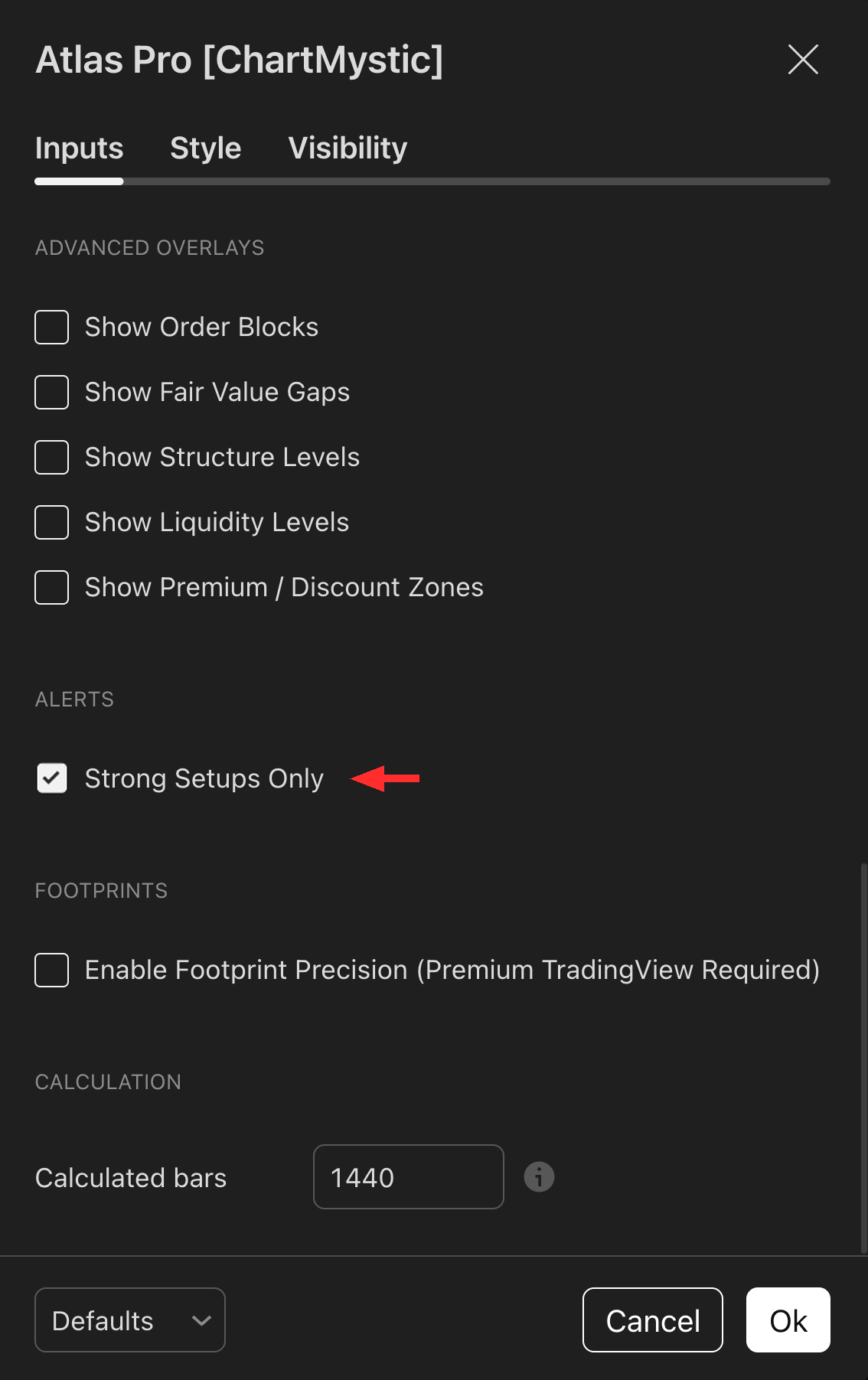
Toggle Strong Setups Only under the Alerts section of the Atlas Pro settings to tighten which confirmed signals fire alerts.
Leave it Off for the full Atlas Pro alert stream. Turn it On for a quieter, higher-confidence feed — only the strongest setups will notify, at the cost of fewer total alerts.
What An Atlas Pro Alert Is
An Atlas Pro alert is a TradingView alert built from one of the alert conditions exposed by the indicator. When the condition fires on a closed bar after you save the alert, TradingView notifies you through your chosen delivery method.
Create An Alert
1. Add Atlas Pro To The Chart
Open the TradingView chart you want to monitor and confirm Atlas Pro is active.
2. Open Create Alert
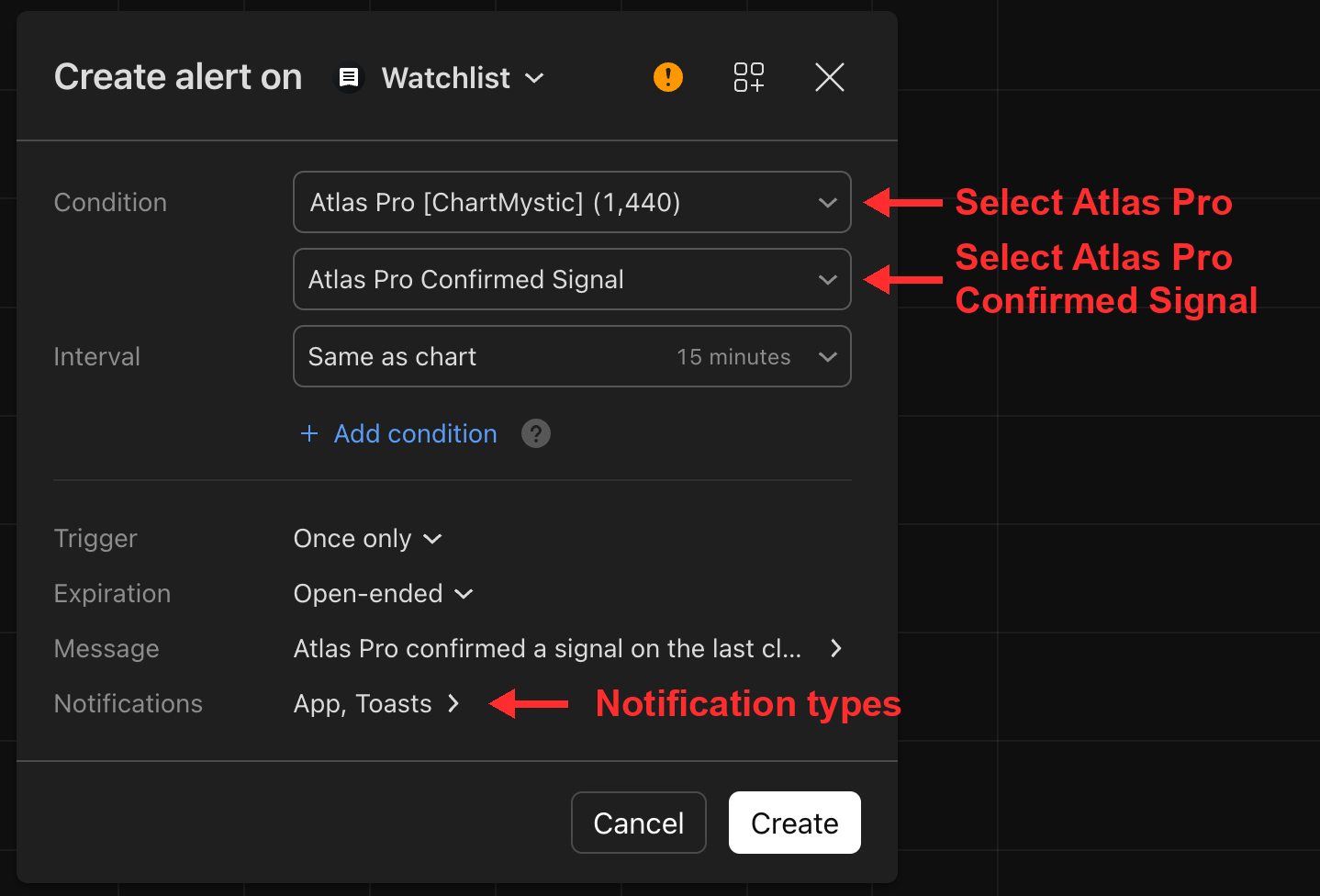
Use TradingView's Create Alert button, then choose Atlas Pro as the alert condition source.

3. Choose The Atlas Pro Condition
Select the general confirmed signal condition for both sides, or choose the bullish-only or bearish-only condition if you want one side.
4. Set Delivery And Save
Choose how TradingView should notify you, add a message or webhook payload if needed, and save the alert.
Recommended Alert Frequency
When you create an Atlas Pro alert in TradingView, the Create Alert dialog includes a trigger-frequency dropdown. The correct setting matters.
Set frequency to Once Per Bar Close
Choose Once Per Bar Close in the TradingView alert frequency dropdown. This matches the engine's closed-bar confirmation logic and prevents the same signal from firing multiple times intrabar. Any other frequency setting can produce duplicate alerts on the same bar.
The default "Once Per Bar" setting fires intrabar — meaning the alert can trigger before the bar actually closes, and Atlas Pro's confirmation only resolves on bar close. Mismatched frequency is the most common cause of "I'm getting duplicate alerts" tickets.
Strong Setups Only
Atlas Pro exposes a Strong Setups Only alert setting. When enabled, alerts are tightened to the highest-confidence confirmed setups — fewer notifications, higher average quality.
Use it when you want a quieter alert stream and are comfortable missing some lower-confidence events. It does not change the chart-side Signal Mode behavior.
Alert Payload
Atlas Pro's alert message is built to be readable by humans and parseable by webhook destinations. Depending on the event, it can include ticker, timeframe, side, confidence, setup path, trigger label, acceptance state, status, and optional context like price, time, profile, and regime.
That payload gives you enough information to triage the alert without opening the chart.
Webhook Messages
TradingView alerts can post webhook payloads to external tools. If you wire alerts to anything that can place real orders, test on non-live routing first.
Example webhook-style message:
{
  "side": "Bullish or Bearish",
  "confidence": "Atlas Pro confidence value",
  "trigger": "Atlas Pro trigger label",
  "acceptance": "Atlas Pro acceptance state"
}
Adjust the schema to match your destination platform. If you are not sure how, ask Scribe Studio to draft a JSON webhook message for your specific tool, then test it with non-live routing first.
Alert Events Reference
| Event | Fires when |
|---|---|
| Atlas Pro Confirmed Signal | Any new confirmed signal prints on the last closed bar |
| Atlas Pro Bullish Signal | A new confirmed bullish signal prints |
| Atlas Pro Bearish Signal | A new confirmed bearish signal prints |
Alert Troubleshooting
A few common reasons alerts behave unexpectedly:
- Duplicate fires on the same bar. Frequency is set to something other than Once Per Bar Close.
- No alerts at all. The alert was created before settings were finalized, or no confirmed signal has occurred since creation.
- Wrong side firing. A general Confirmed Signal alert is selected when only one side is wanted — switch to the bullish-only or bearish-only condition.
- Webhook silent. The webhook URL is unreachable, or the JSON payload is malformed. Test the destination with a manual POST first.