

Pine Screener Integration
Use Atlas Pro output in TradingView Pine Screener to triage watchlists faster.
TradingView Premium is required for Pine Screener
Pine Screener is only available to users on a TradingView Premium plan. This is a restriction TradingView places on Pine Screener access — it is outside ChartMystic's control. If you are on a lower TradingView tier, Pine Screener will not be available regardless of how Atlas Pro is configured.
You must favorite Atlas Pro first
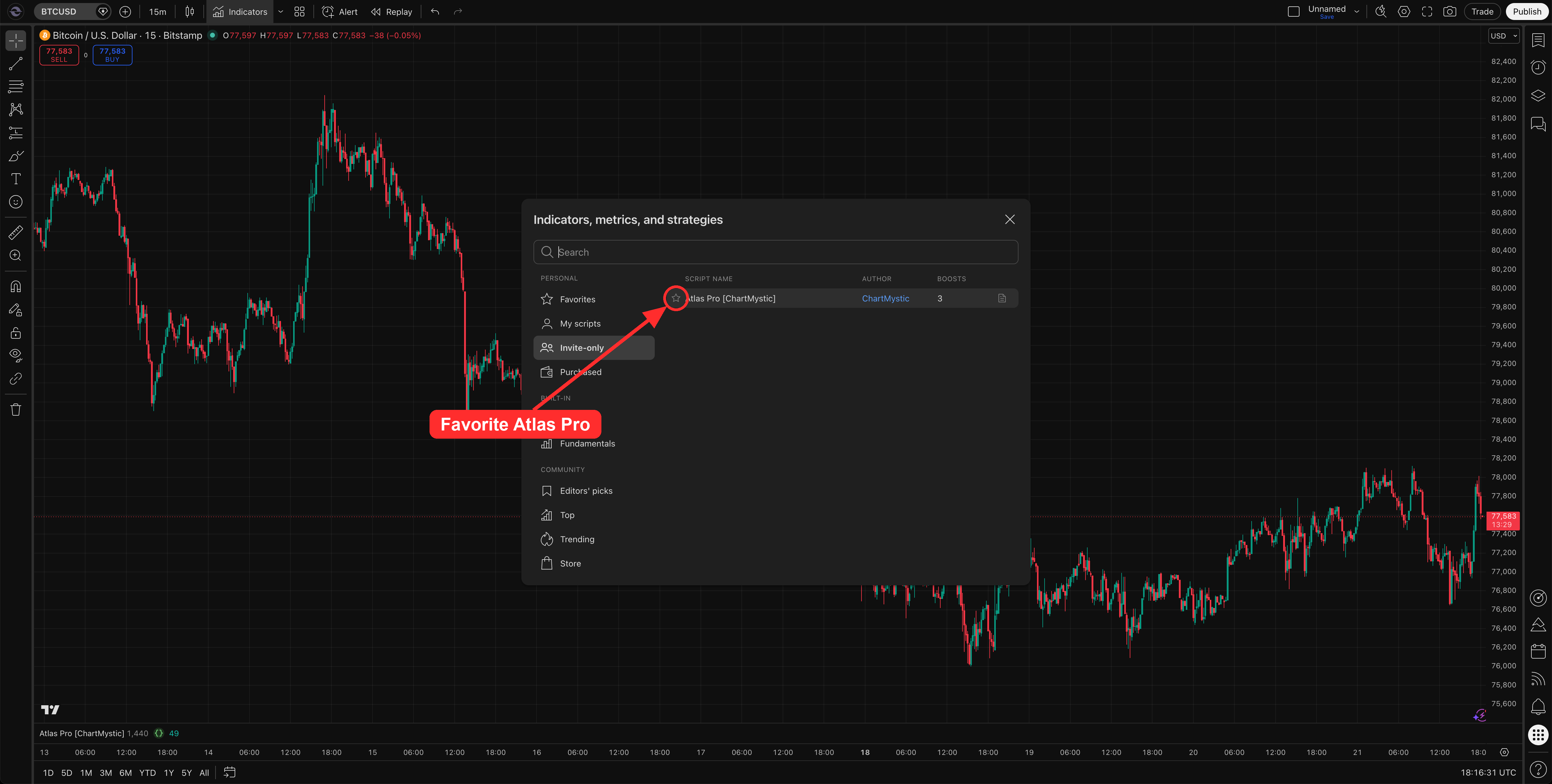
Pine Screener only shows indicators you have favorited in TradingView. Atlas Pro will not appear in the Pine Screener indicator dropdown until you favorite it. Open the Indicators dialog, find Atlas Pro under Invite-only scripts, and click the star icon next to it. After that, Atlas Pro will appear in the Pine Screener indicator list.
Pine Screener lets you scan a TradingView watchlist with a Pine Script indicator, then sort and filter the results in a table. Atlas Pro publishes screener-safe output to that table so you can find charts worth opening without clicking through every symbol.
What Pine Screener Is For
A screener takes a list of symbols and applies a filter or indicator output across that list. Instead of clicking through twenty, fifty, or hundreds of charts manually, you sort the table and surface the symbols showing the strongest or cleanest current conditions.
TradingView's Pine Screener is distinct from the older built-in stock and crypto screeners because it can read Pine Script output. Any indicator that publishes plot values can expose them as screener columns and filters.
Why We Use TradingView's Native Pine Screener
Some indicator platforms ship a custom screener bundled with their product. We chose to integrate with TradingView's native Pine Screener instead, for three concrete reasons:
- One indicator, not two. You do not need a separate "screener edition" of Atlas Pro that ships duplicated logic. The same script that runs on your chart is the script the screener evaluates.
- Massively faster scans. TradingView's Pine Screener runs natively inside the TradingView infrastructure. It can scan watchlists of dozens or hundreds of symbols far faster than a custom in-app screener can — there is no round-trip to an external server.
- Native UI you already know. Sort, filter, and column controls live in the TradingView interface you already use. No second tool to learn.
The integration is simpler, faster, and lets the chart and the screener stay in sync because they are reading the same script.
How To Use The Pine Screener
The full workflow lives inside TradingView's Pine Screener page.
1. Favorite Atlas Pro
Pine Screener only shows indicators you have favorited in TradingView. Open the Indicators dialog, find Atlas Pro under Invite-only scripts, and click the star icon next to it. After that, Atlas Pro will appear in the Pine Screener indicator list.
2. Select Atlas Pro in Pine Screener
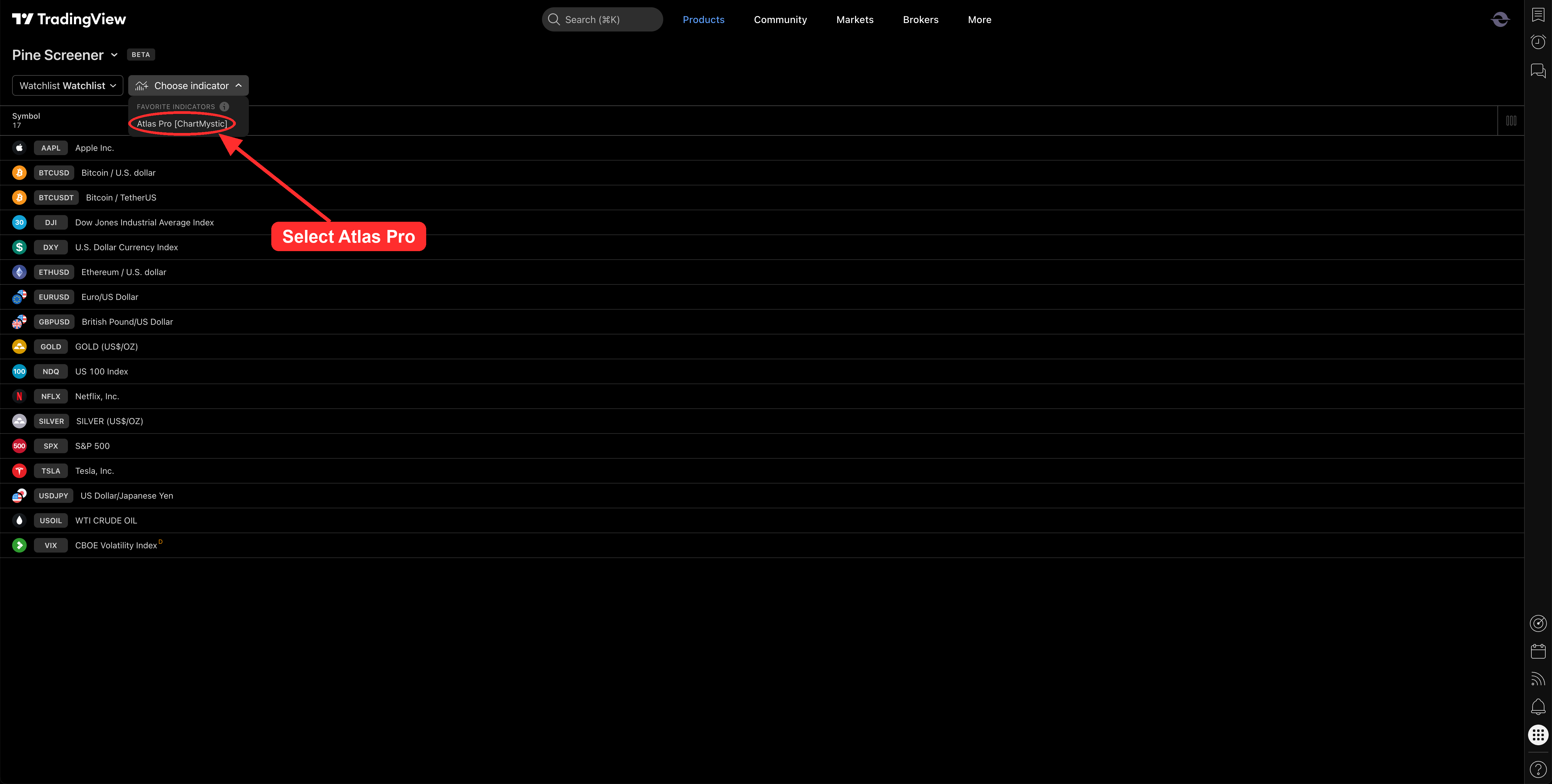
Open the Pine Screener and add Atlas Pro as the indicator it scans with. Click the indicator selector, open your favorited (starred) scripts, and choose Atlas Pro [ChartMystic]. Pine Screener evaluates one indicator at a time, so this is the script every column and filter on the page reads from.
3. Set up the display columns
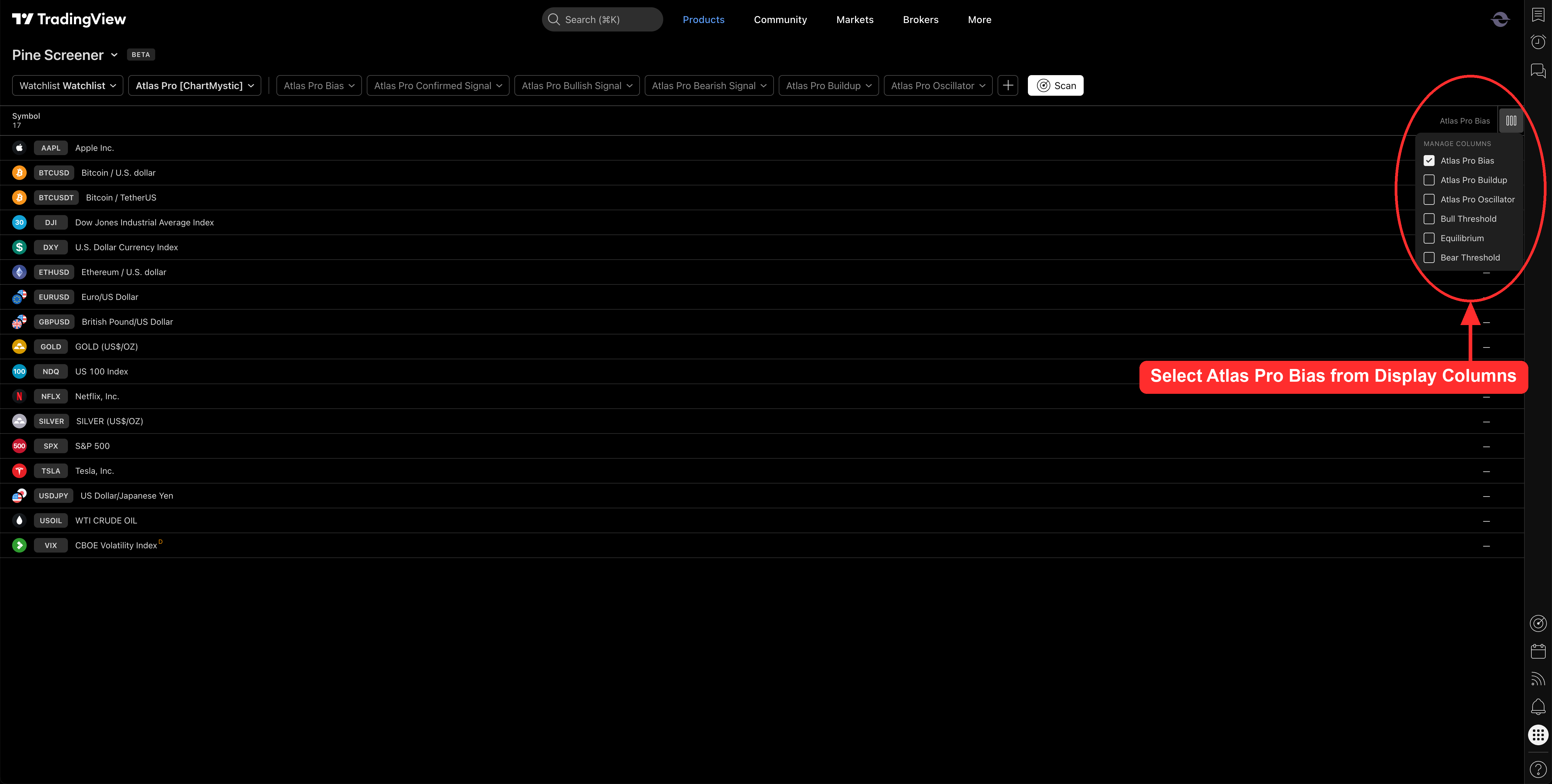
The columns control what each row of the screener shows. Click the column-settings (gear) icon in the screener's top toolbar and enable Atlas Pro Bias to display the signed confidence value per symbol.
You can drag columns to reorder them and click any column header to sort by it. Click the Atlas Pro Bias header once to sort ascending (strongest bearish reads at top), again to sort descending (strongest bullish reads at top).
4. Set up the filters
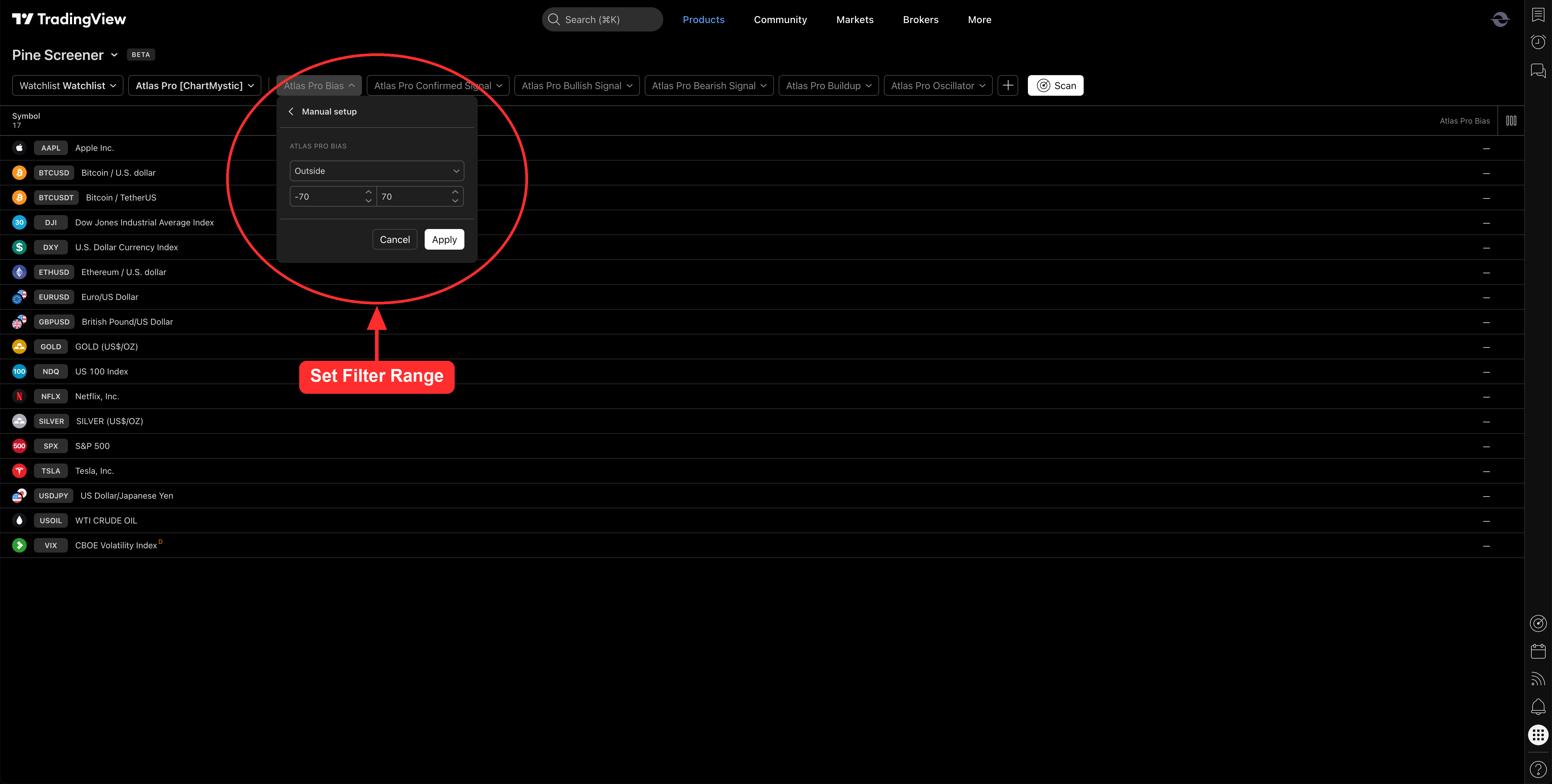
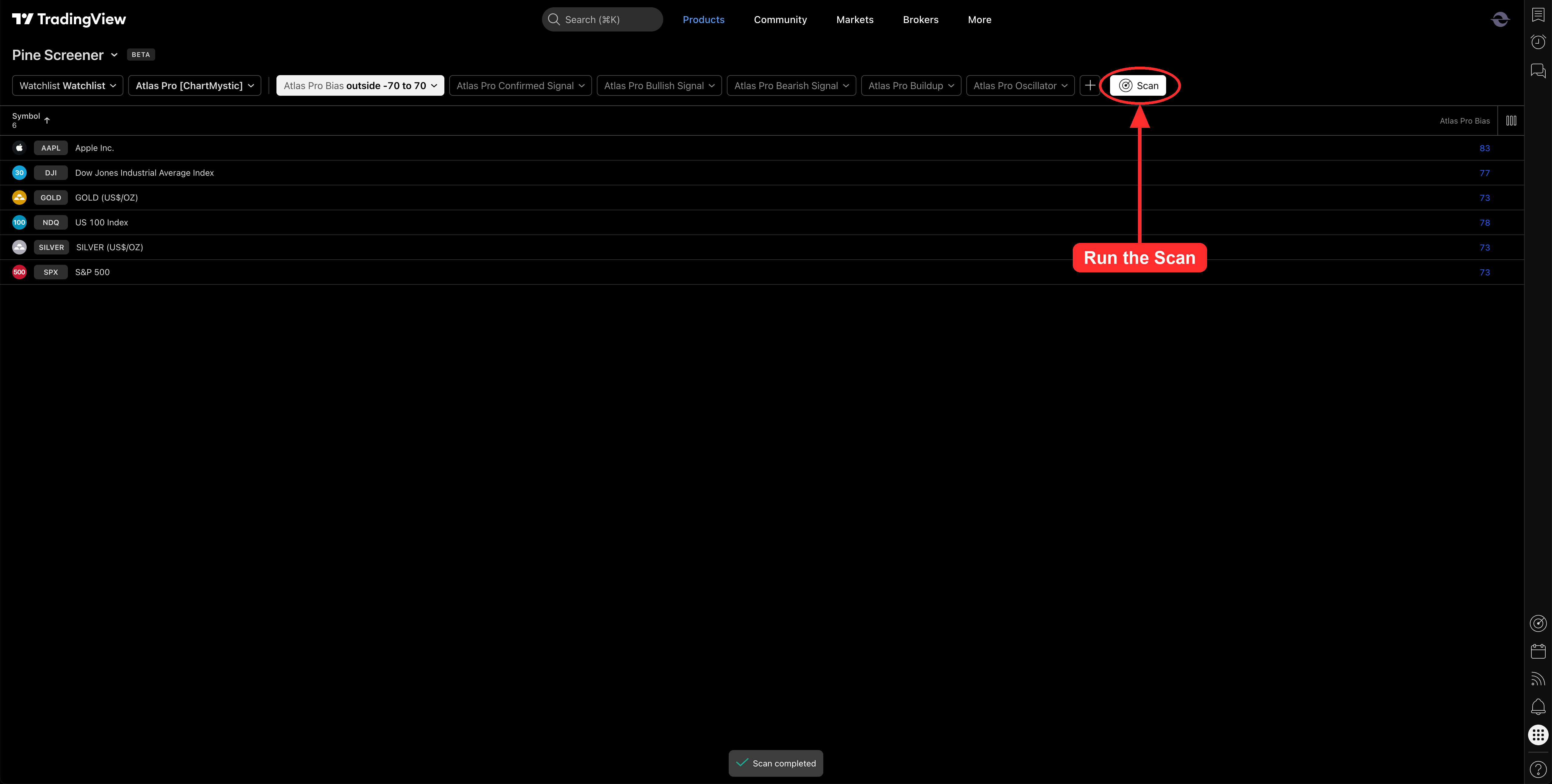
Click the filter (funnel) icon in the toolbar and configure the Atlas Pro Bias filter so the value sits outside the range −70 to 70 — keeping only rows where the bias is ≥ 70 or ≤ −70.
Why those bounds: Atlas Pro publishes a confirmed signal at 70% confidence. Filtering outside ±70 surfaces only the symbols whose current read has cleared the confirmation threshold — the bullish set at the top of the table, the bearish set at the bottom.
You can adjust the bounds to your own taste:
- Tighter cutoffs (for example, ±80 or ±85) surface only the highest-confidence reads.
- Looser cutoffs (for example, ±50 or ±60) include earlier, weaker leans you may still want to review.
5. Run the scan
With Atlas Pro selected as the indicator and your filters configured, the screener evaluates every symbol in the active watchlist against the chosen timeframe. The table updates automatically as you change filters, columns, or the watchlist itself.
Click any symbol in the results to open it on a full chart. From there, confirm the dashboard, Key Zone, Invalidation Line, and oscillator agree with the screener output before acting.
6. Adjust the timeframe
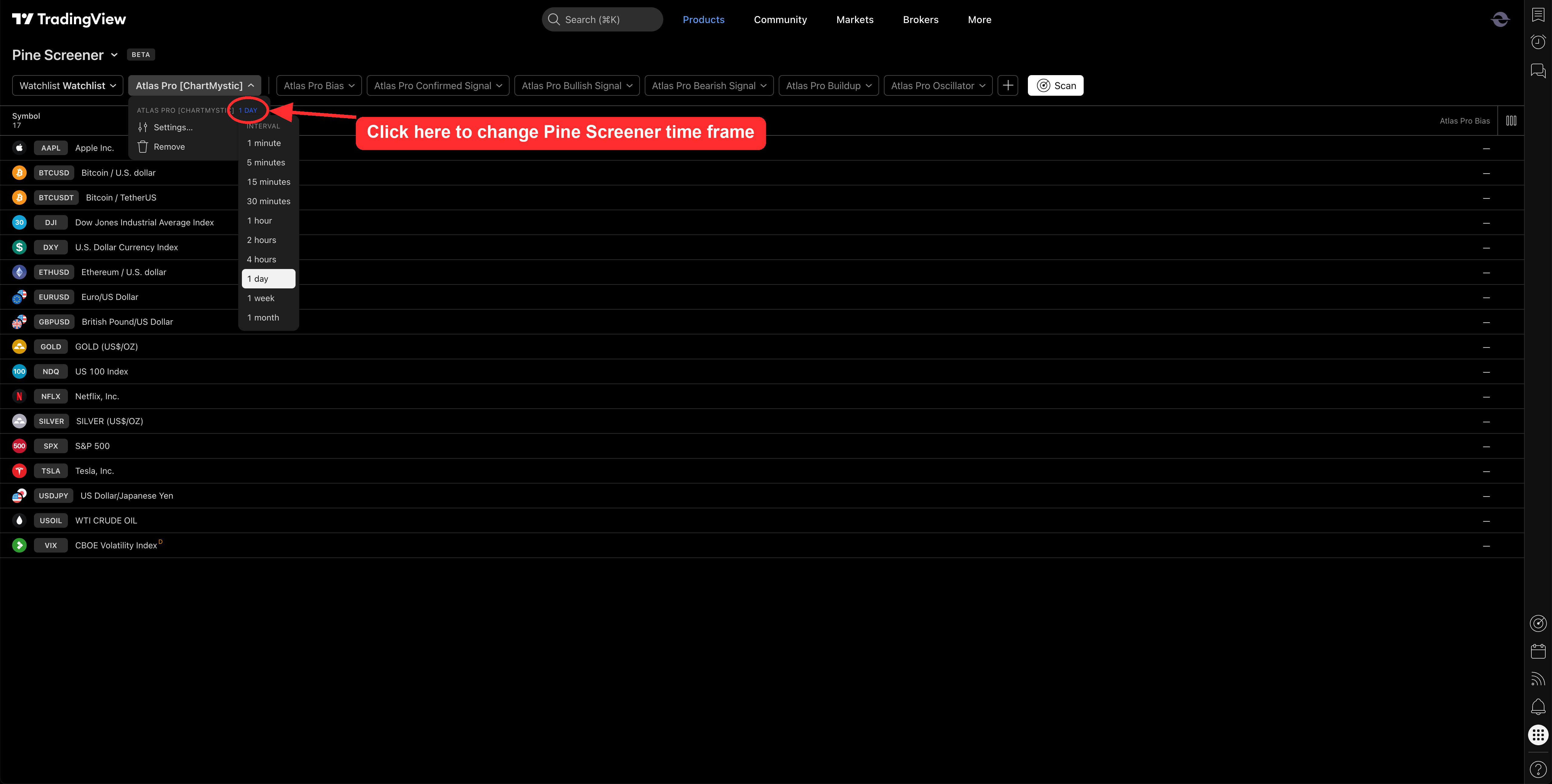
Pine Screener evaluates every symbol against a single timeframe that you set on the screener page itself — it does not inherit the timeframe from any chart you have open. Open the Atlas Pro [ChartMystic] dropdown in the screener toolbar to reveal the interval list: 1 minute, 5 minutes, 15 minutes, 30 minutes, 1 hour, 2 hours, 4 hours, 1 day, 1 week, and 1 month.
Pick the interval the scan should run on — for example, 1 day for swing-horizon discovery across the watchlist. The table re-evaluates against the new interval as soon as you make a selection.
Timeframe And Symbol-List Strategy
Different timeframes serve different roles in screener-first workflow.
Use 1D for discovery. Daily candles aggregate enough context for the engine to publish stable, meaningful bias values across an entire watchlist. They are the right starting point for finding swing-horizon candidates.
Drop to 1h for confirmation. Once a 1D scan flags two or three candidates, open their full 1h charts to time the entry. The 1D read tells you the bias; the 1h read tells you whether the current intraday structure agrees.
Skip ultra-low timeframes for screening. The screener evaluates only the last 500 bars (a TradingView platform constraint). On a 1-minute timeframe, 500 bars is barely eight hours — not enough history for the engine to build full context. Save sub-15m work for the chart, not the screener.
Keep watchlists focused. A watchlist of 200 symbols across uncorrelated markets produces a noisy screener. Build watchlists by market category (Crypto Top 20, FX Majors, US Tech, Liquid Futures) and scan one at a time.
Triage at watchlist scale, then confirm on the chart
The screener is for discovery. The chart is for decisions. Pine Screener narrows hundreds of symbols down to the handful worth deeper review. The full Atlas Pro chart — dashboard, Key Zone, Invalidation Line, oscillator, overlays — is where you actually take the read.
Reading Screener Values
| Value type | What it means | What to do next |
|---|---|---|
| Strong positive | Stronger bullish current read | Open the chart and review the full setup context |
| Mild positive | Mild bullish lean | Review only if the symbol is already on your radar |
| Near zero | Neutral, unavailable, unsupported, or not ready | Usually skip unless investigating that symbol specifically |
| Mild negative | Mild bearish lean | Review only if broader context is relevant |
| Strong negative | Stronger bearish current read | Open the chart and review the full setup context |
Screener Troubleshooting
If Atlas Pro does not appear
Confirm Atlas Pro is favorited in TradingView (see the warning at the top of this page), that you are signed into the TradingView account connected to ChartMystic, and that your ChartMystic access is active. If it still does not appear, refresh TradingView and reconnect your TradingView username in ChartMystic before contacting support.
TradingView's Pine Screener has real platform constraints that shape what Atlas Pro can publish and how you should interpret the output.
Hard platform limits:
- Only one indicator can be selected per Pine Screener screen.
- Only plots from the selected script can become table columns.
- Pine Screener evaluates only the last 500 bars per symbol.
- Scripts using more than 5
request.*()calls are not compatible. - The plot column count is capped at 10.
- Pine Screener supports a fixed list of timeframes.
Common gotchas:
- Screener-vs-chart drift. The screener's 500-bar window is shorter than the chart's full history. Setup state on the screener can lag or differ slightly from the same chart's full read. Trust the chart for the final decision.
- Stale values after refresh. TradingView occasionally caches screener output. Reload the screener page if values look frozen.
- Timezone mismatches. The screener uses TradingView's session context, which may not match your chart's exchange session. This is usually only visible on session-anchored values.