ChartMystic
  • How it works
  • Products
  • Results
  • Pricing
  • FAQ
  • Docs
Log inSign up
  • How it works
  • Products
  • Results
  • Pricing
  • FAQ
  • Docs
  • Log in

Documentation

Getting Started

IntroductionInstallationGet Help

Atlas Pro

OverviewHow Atlas Pro ThinksLive And Confirmed SignalsDashboardAtlas Pro OscillatorSignal ModesKey Zone And Invalidation LineMulti-Timeframe DashboardOrder BlocksFair Value GapsStructure LevelsLiquidity LevelsPremium And Discount ZonesAlertsPine Screener IntegrationFootprint Precision ModeSupported Markets And ChartsSettings ReferenceTroubleshooting

Scribe Studio

OverviewFrom Idea to PineScriptGenerate An IndicatorGenerate A StrategyBacktest In TradingViewImage-To-CodeDebug And Fix Pine ScriptAlerts And WebhooksSaved StrategiesLimits, Reliability, And ReviewTroubleshooting

Resources

FAQBest PracticesGlossary
Documentation/Atlas Pro/Settings Reference

Settings Reference

A reference for the public Atlas Pro settings and how to use them.

A reference for every public Atlas Pro setting.

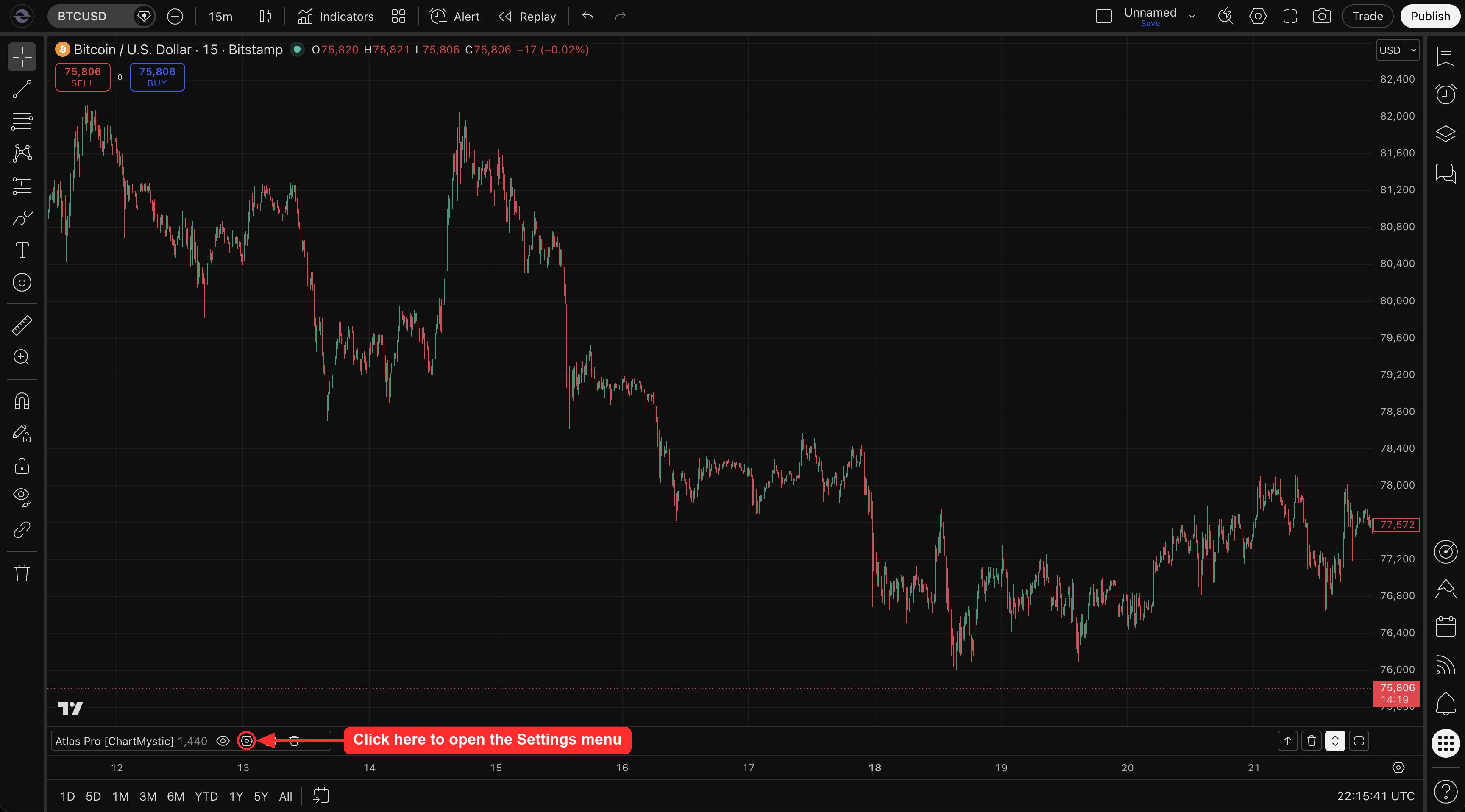
Opening the Atlas Pro settings menu
Screenshot
Opening the Atlas Pro settings menu
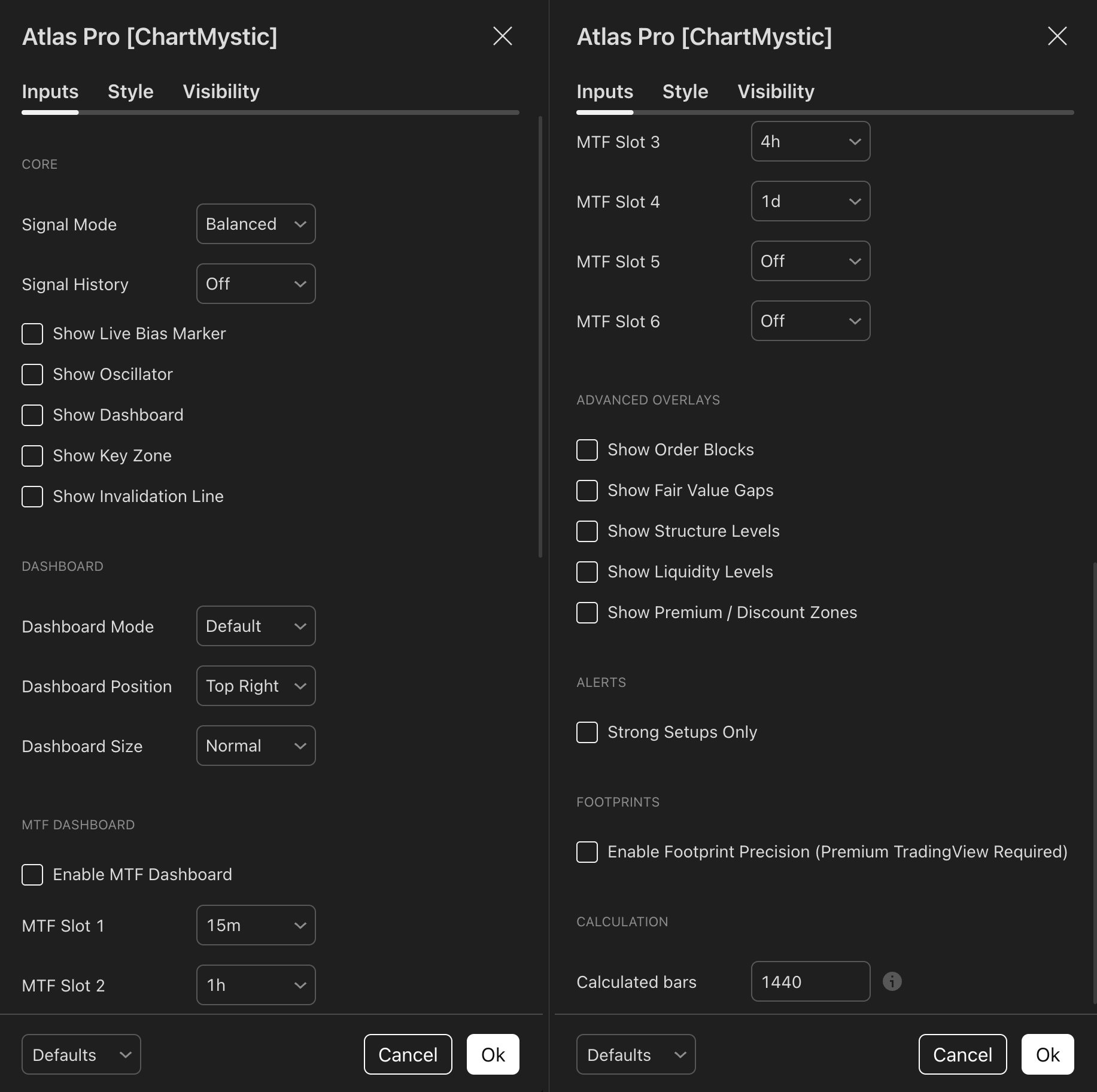
The full Atlas Pro settings menu
Screenshot
The full Atlas Pro settings menu

Core Settings

SettingDefaultOptionsWhat It ChangesRecommended Use
Signal ModeBalancedConservative, Balanced, AggressiveControls confirmed signal selectivityStart with Balanced
Signal HistoryCurrent SessionAll, Current Session, OffControls visible historical markersUse Current Session for a clean chart
Show Live Bias MarkerOnOn, OffShows or hides the Live Bias Marker in the TradingView UIKeep on while learning
Show OscillatorOnOn, OffShows or hides the Atlas Pro Oscillator paneKeep on while learning the read
Show DashboardOnOn, OffShows or hides the dashboardKeep on
Show Key ZoneOnOn, OffShows or hides the Key ZoneKeep on
Show Invalidation LineOnOn, OffShows or hides the Invalidation LineKeep on

Dashboard Settings

SettingDefaultOptionsWhat It ChangesRecommended Use
Dashboard ModeDefaultCompact, Default, ExpandedControls dashboard detailStart with Default
Dashboard PositionTop RightTop Right, Top Left, Bottom Right, Bottom LeftMoves the dashboard on the chartChoose the least crowded corner
Dashboard SizeNormalCompact, NormalControls dashboard sizeUse Normal first

MTF Dashboard Settings

SettingDefaultOptionsWhat It ChangesRecommended Use
Enable MTF DashboardOffOn, OffShows or hides MTF dashboard rowsTurn on after learning the base dashboard
MTF Slot 115mOff, 1m, 5m, 15m, 30m, 1h, 2h, 4h, 1d, 1w, 1MFirst MTF slotUse for your nearest comparison timeframe
MTF Slot 21hSame as Slot 1Second MTF slotCommon intraday context
MTF Slot 34hSame as Slot 1Third MTF slotCommon higher-timeframe context
MTF Slot 41dSame as Slot 1Fourth MTF slotDaily context
MTF Slot 5OffSame as Slot 1Optional extra slotKeep off unless needed
MTF Slot 6OffSame as Slot 1Optional extra slotKeep off unless needed

Advanced Overlay Settings

SettingDefaultOptionsWhat It ChangesRecommended Use
Show Order BlocksOffOn, OffDisplays order-block contextEnable only when studying structure
Show Fair Value GapsOffOn, OffDisplays fair-value-gap contextEnable when reviewing imbalances
Show Structure LevelsOffOn, OffDisplays structure contextEnable when reviewing breaks or shifts
Show Liquidity LevelsOffOn, OffDisplays liquidity referencesEnable when reviewing sweeps or targets
Show Premium / Discount ZonesOffOn, OffDisplays range-position contextEnable when reviewing range location

Alert Settings

SettingDefaultOptionsWhat It ChangesRecommended Use
Strong Setups OnlyOffOn, OffTightens alert emissionLeave off first, enable when you want fewer alerts

Footprint Settings

SettingDefaultOptionsWhat It ChangesRecommended Use
Enable Footprint Precision (Premium TradingView Required)OffOn, OffUses footprint data when availableLeave off unless your TradingView plan supports it

Calculation Settings

SettingDefaultOptionsWhat It ChangesRecommended Use
Calculated Bars1440Number of bars (numeric range)Controls how many historical bars Atlas Pro loads and runs its calculations overLeave at the default; only raise it for analysis on an extremely large timeframe

Calculated Bars sets how many historical bars the Atlas Pro script loads and runs its calculations over. The default of 1440 gives the engine enough history to build full context on every supported timeframe while keeping the script fast and responsive.

Leave Calculated Bars at the default

There is almost never a reason to change this setting. The default of 1440 is tuned to balance accuracy and performance, and the engine relies on it. Only raise Calculated Bars if you specifically need to analyze historical data on an extremely large timeframe — and even then, raise it no further than that analysis requires. For normal use, leave it exactly as it is.

Never set Calculated Bars too low

Setting Calculated Bars below the default starves Atlas Pro of the history it needs to function correctly. Without enough bars, the engine cannot build full context, signals and structure become unreliable, and the script can break entirely or fail to load on the chart. If Atlas Pro stops loading after a settings change, restore Calculated Bars to 1440.

PreviousSupported Markets And ChartsNextTroubleshooting

Need help?