

Premium And Discount Zones
Read where price sits inside the active range without treating range position as a standalone signal.
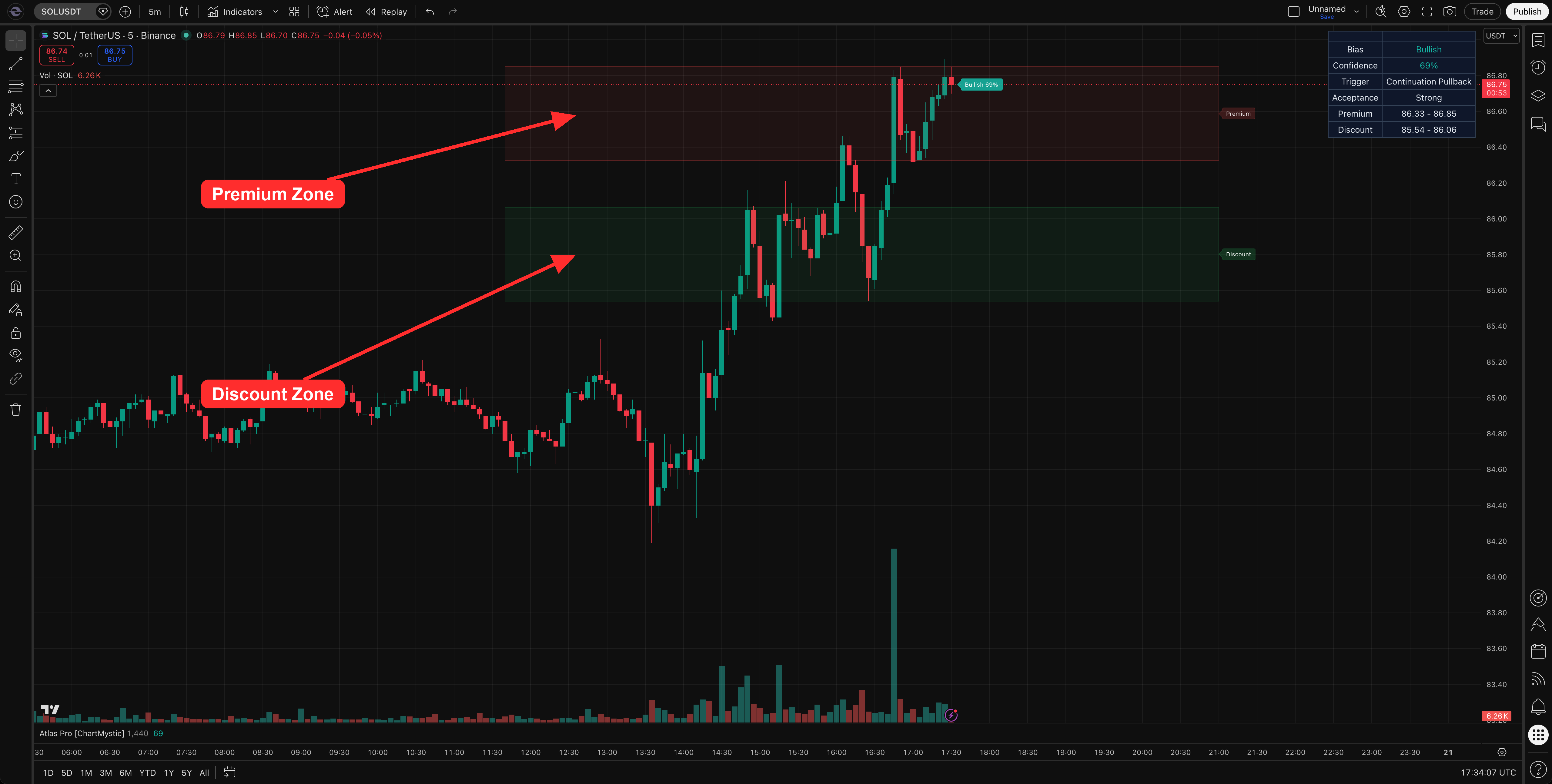
Premium and Discount Zones answer one question: where inside the active range is price right now? The upper portion is Premium, the lower portion is Discount, and the middle is Equilibrium. That is the entire model.
Premium and Discount Zones partition the active range so you can read whether current price is in expensive (premium) or cheap (discount) territory at a glance.
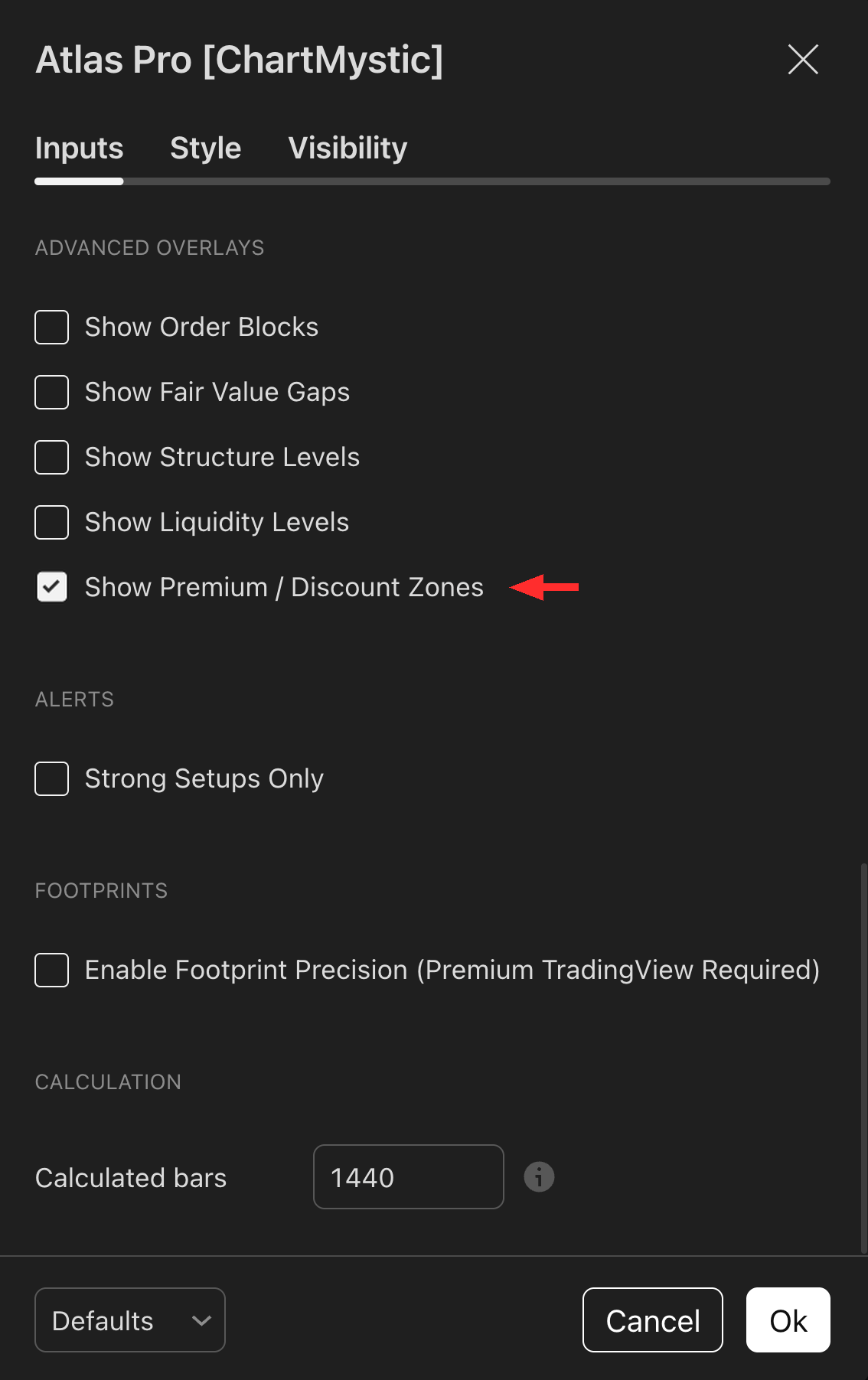
Enable Show Premium / Discount Zones under the Advanced Overlays section to render the colored zones on the chart.
How Atlas Pro Builds The Range
The premium/discount map is derived from the active external structure range when a valid range is available. The dashboard surfaces the Premium and Discount price bands, and Expanded mode's Value row summarizes price location and AVWAP context. This makes range position a context layer — not a direction rule.
Not a directional command
Premium does not automatically mean short. Discount does not automatically mean long. A bullish trend can spend its entire run in premium; a bearish trend can grind for sessions in discount. Use range position to weigh setups, not to override them.
How To Enable Premium And Discount Zones
- Open Atlas Pro settings.
- Go to Advanced Overlays.
- Toggle Show Premium / Discount Zones on.
How To Read These Zones
Use range position to ask:
- Is price extended within its current range, or sitting near a fresh boundary?
- Is the active read developing from a meaningful part of the range?
- Is price accepting beyond the equilibrium midpoint?
- Does the confirmed signal make sense in its range location?
- Is the Key Zone closer to a range boundary or to equilibrium?
Example Use
Price sits in Discount, Atlas Pro confirms Bullish 74% with Strong acceptance, and the Key Zone anchors near the discount boundary. The range location helps explain why the setup has support.
Price sits in Premium and a bullish read is still active. Do not automatically fight it. Check acceptance, structure, liquidity, and invalidation. Atlas Pro is weighing far more than range location alone.
Common mistakes
- Shorting every premium tag. Premium in an uptrend is where the trend lives. Direction comes from the engine, not from range position.
- Ignoring equilibrium. Setups developing from the middle of the range often need cleaner confirmation than setups developing from a discount low or premium high.