

Code
What the Code tab holds, what Pine Script is, and how the script gets from Scribe to your chart.
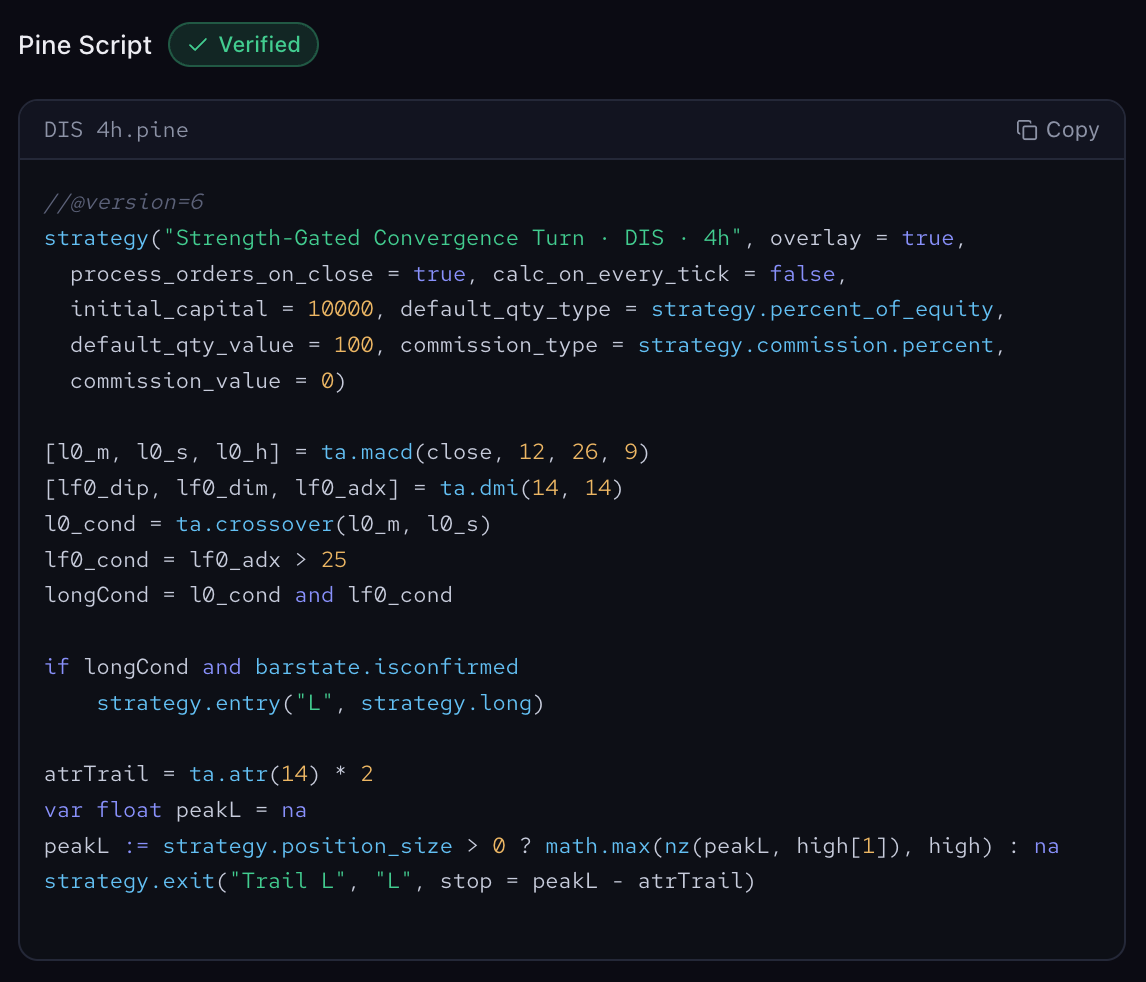
Every result in Scribe Studio ends in code. The Code tab holds the strategy you are looking at, written out as a script that TradingView can run. It is the same strategy the Performance and Trade Analysis tabs describe, with the same entry rule, filters, trailing stop, direction, commission and order size that produced their numbers, and it is what you paste into TradingView when you want to see the strategy trade on your own chart. Change any setting with Tweak and the script on the new run changes with it.
What Pine Script Is
Pine Script is TradingView's own programming language. Every indicator and strategy that runs on a TradingView chart is written in it, and TradingView's Pine Editor reads a script, draws its trades on the chart and produces a report from them. Scribe's script is the strategy itself written in that language, in version 6, the current one, so it drops straight into the editor with nothing to convert. Read top to bottom it does what the strategy does: the header sets the commission and order size the run was tested with, the indicator calculations follow, then the entry conditions for each side the strategy trades, the entries themselves, and the trailing stop that closes every trade.
The file bar names the script after the run, for example TSLA 1h.pine, and the script's own title is the strategy's name with its market and timeframe, so you will recognize it in TradingView's list of scripts. You do not need to read or write Pine Script to use any of this. The script is generated for you; your part is to copy it and paste it.
Copying the Script
Press Copy on the file bar. "Copied" confirms it. If your browser blocks the clipboard, Scribe selects the whole script for you and tells you to press Cmd/Ctrl + C.
Copy from the run you mean. When a conversation holds several runs, the Strategy History dropdown in the panel header sets which one the Code tab shows, and the file name confirms it.
Putting It on Your Chart
The script only does something once it is on a TradingView chart. Press Open in TradingView in the actions row and Scribe walks you through it: copy the code, open the right market and timeframe on TradingView, and paste into the Pine Editor. Once it is added, TradingView marks every entry and exit on the chart and produces its own report over TradingView's price history. covers the transfer step by step and what to do with that report.